
Managing Windows Azure AD from the Windows Azure Portal 3– Add a Co-Admin, Use 2FA
Here there’s the last of three super quick visual guides about playing with the new Windows Azure Active Directory features in the Windows Azure portal. Please make sure you read Alex’s announcement and watch Abhishek’s video first! Also, you should read the first two posts of the series first.
I’ll try to keep the word count down, and let the screenshots speak! Hopefully this will entice you to try things yourself, and provide some reassurance if you are going through the process and get stuck. Note, I didn’t work at all on this great feature! All the credit goes to the UX and directory teams, who did a super job here. I just went through the following steps as any other customer would, and took screenshots along the way.
I broke down things in three posts:
- The first post shows you how to sign up for a new Windows Azure subscription using an organizational account from an existing Windows Azure Active Directory tenant (e.g. your existing directory from an Office 365 subscription, etc). This option is actually not new, it was already available to you few weeks ago. I captured it anyway to give you a full end-to-end walkthrough with coherent names & screens.
- The second post goes through the main directory management features offered by the portal
- This post will demonstrate something really really cool: we’ll create a new directory user, make it a global admin in the directory, and a co-admin in the Windows Azure subscription. Then… we’ll configure that account to enforce phone-based additional authentication factor when accessing the portal
 pretty awesome, eh? Spoiler alert: there will be pictures of my phone.
REMEMBER: the multi-factor authentication feature is currently in PREVIEW.
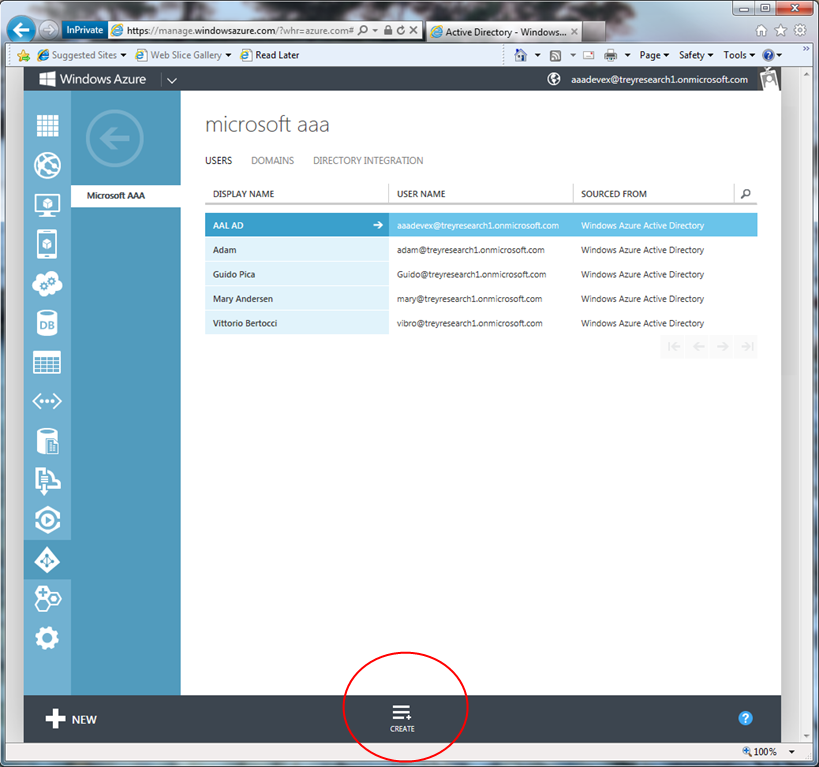
Ready? Let’s do this thing. Go back to the list of users, and click “create”.
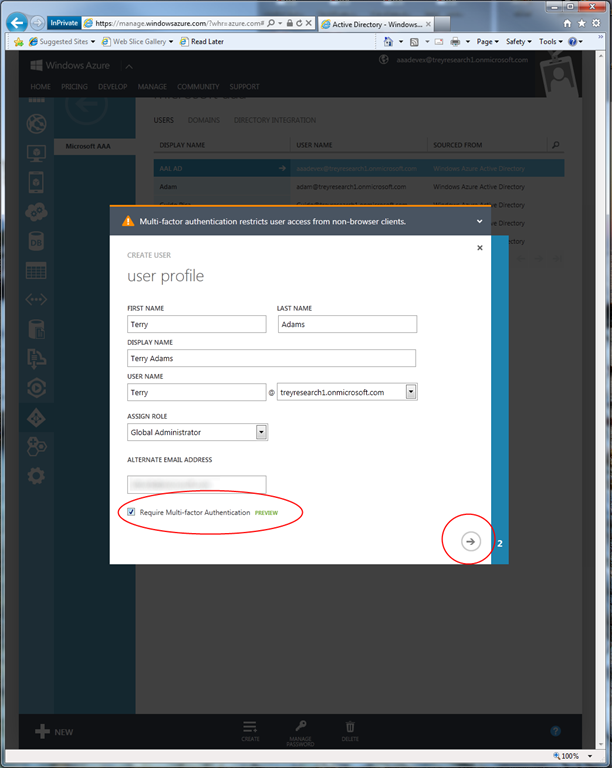
Fill the details in, and make sure you assing the global administrator role. Also, check the “require multi-factor” option.
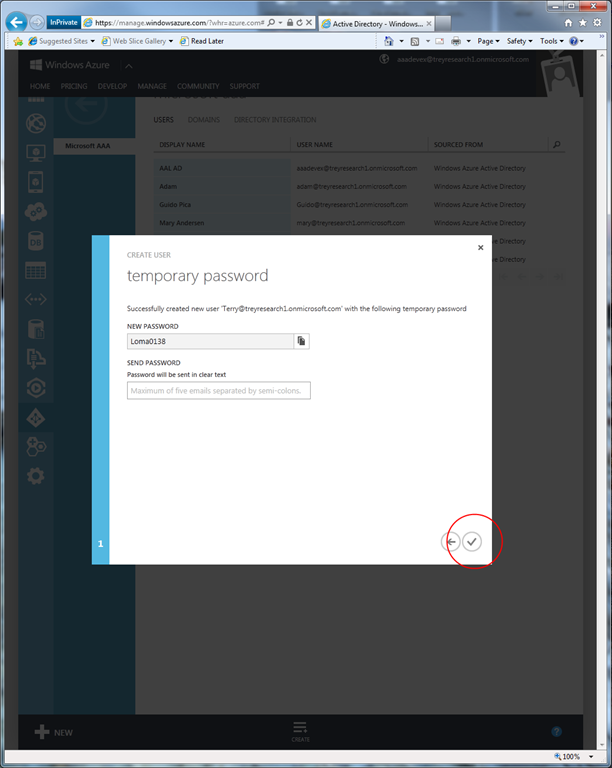
User created! Paste the temporary password somewhere, we’ll need it later.
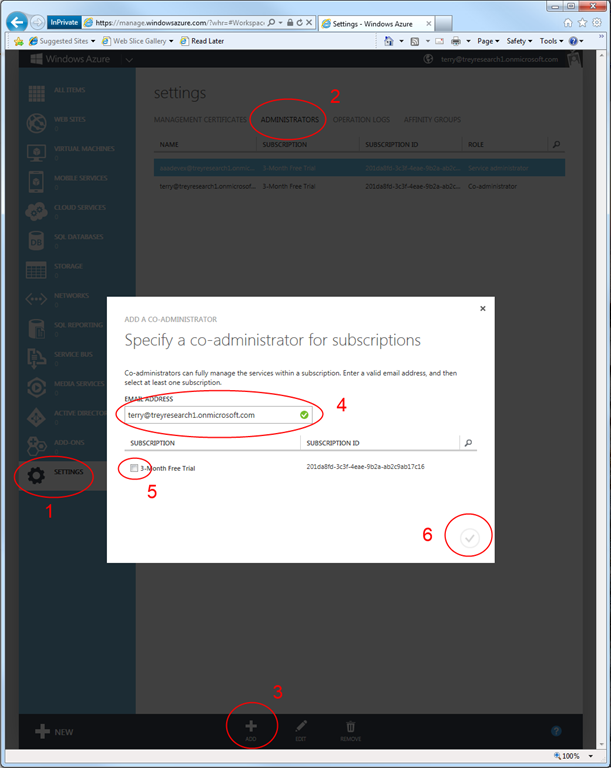
Now, we want to mark the newly created directory user as a co-admin for the current subscription. I didn’t want to do too many screenshots for this, hence I compressed the instructions into one:
- go to the settings tab
- choose the administrators header
- click add
- enter the UPN of the newly created user
- check the 3-months trial subscription
- hit the “ok” check button
As established, your new user is now a co-admin. Time to test it! Sign out, and sign in as the new user.
Now, things will get a bit frantic. We created a new user: normally, that would entail at first login using the temporary password and changing it right away. On top of that, we are requesting multi-factor authentication: that too needs to be set up, and will also require extra steps. Long story short: this first sign in will have many steps, but it’s a one-time only thing.
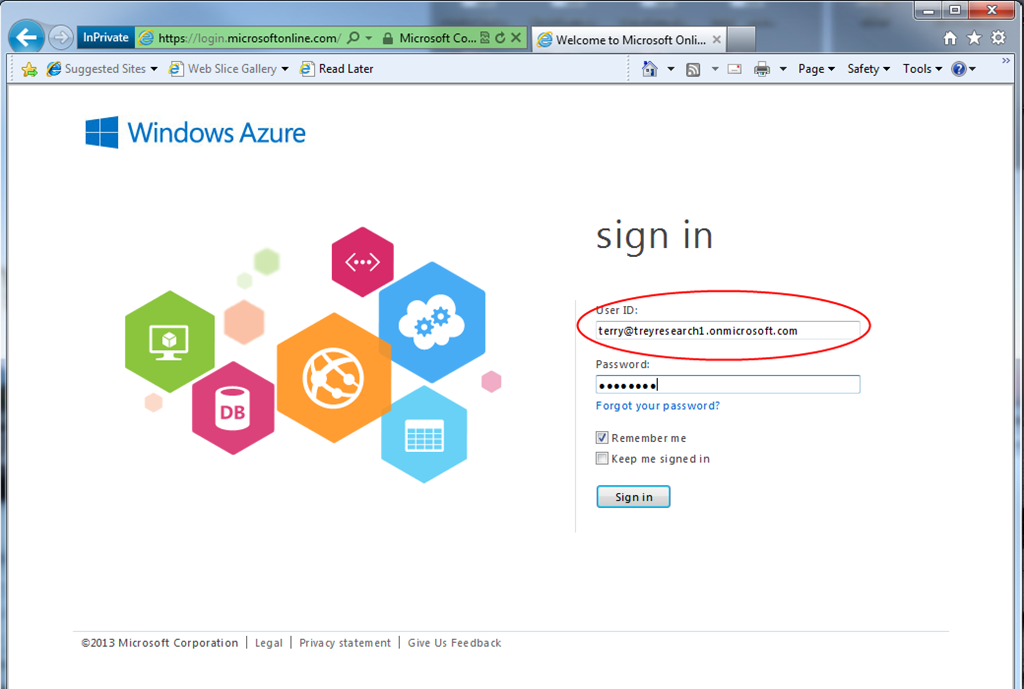
Let’s dive right in. Sign in with the temporary password.
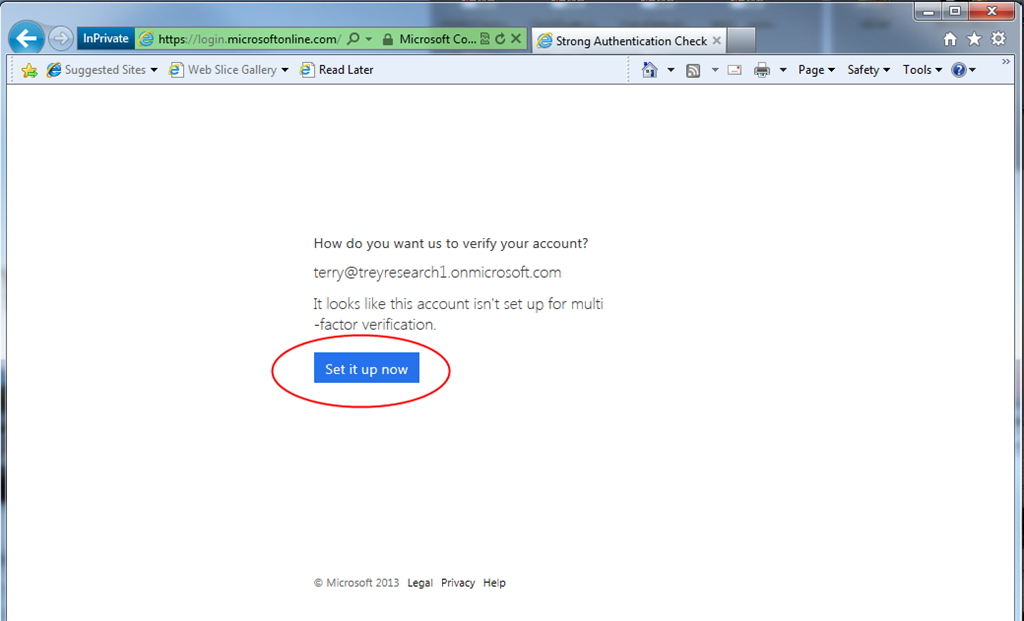
Windows Azure AD sees that the user is required to use multi-factor auth, but that was not set up yet; hence, it offers to set things up right this moment. Go ahead and click the blue button.
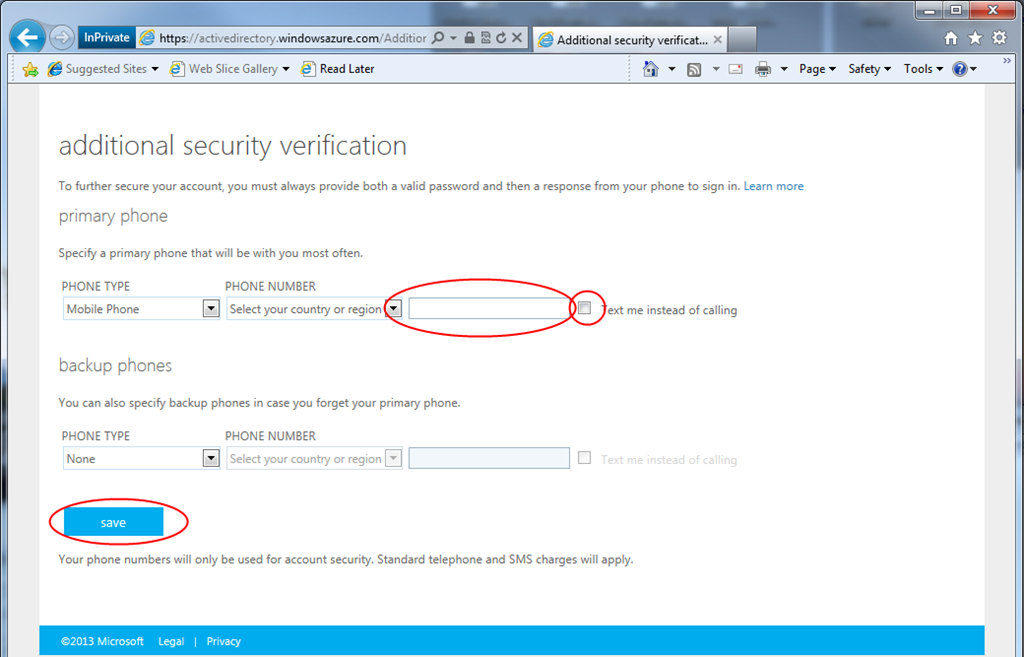
Here you are asked to provide a phone number and choose how verification will take place, phone call or SMS. I picked SMS, given that it’s pretty late at night and my wife would not appreciate a call
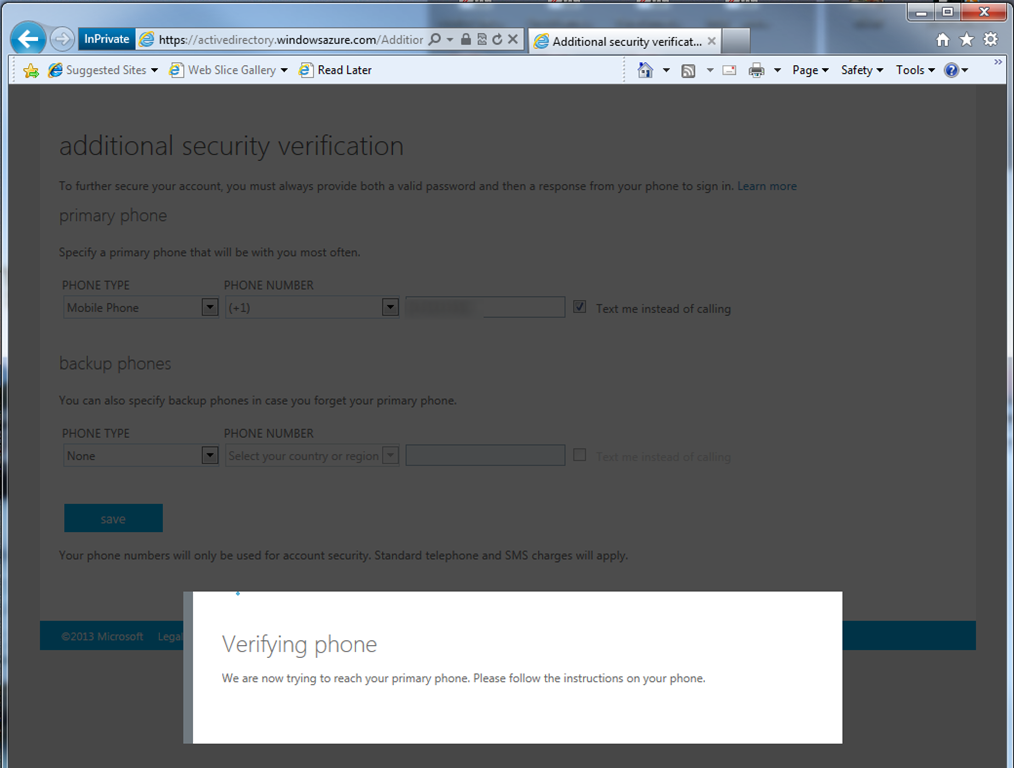
As soon as you hit save, the system will initialize by sending you a message.
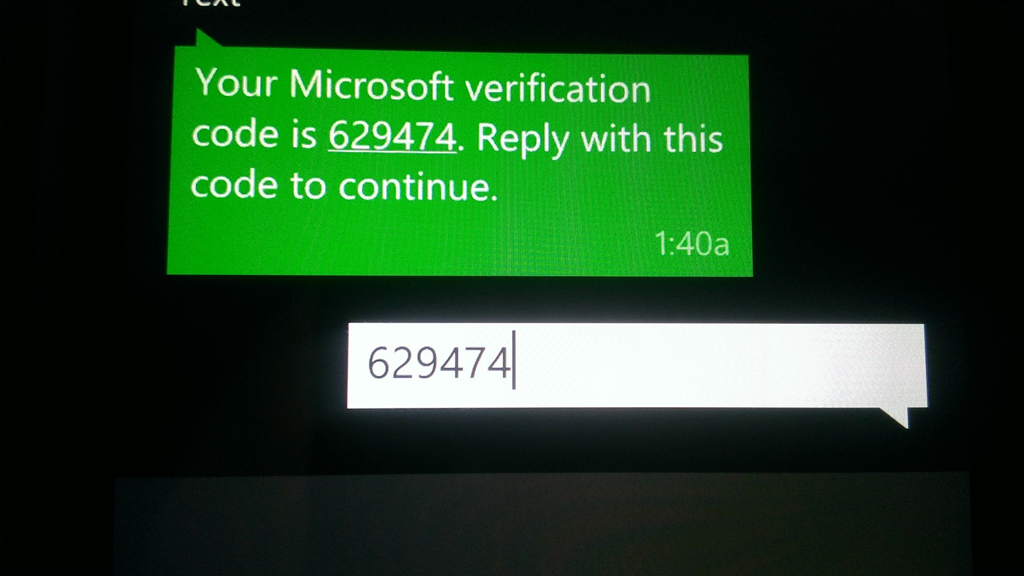
…and sure enough, here there’s the message. This will time out pretty fast, as I discovered when taking too much time capturing screens. Reply to the text with the provided code, then see what happens in the browser.
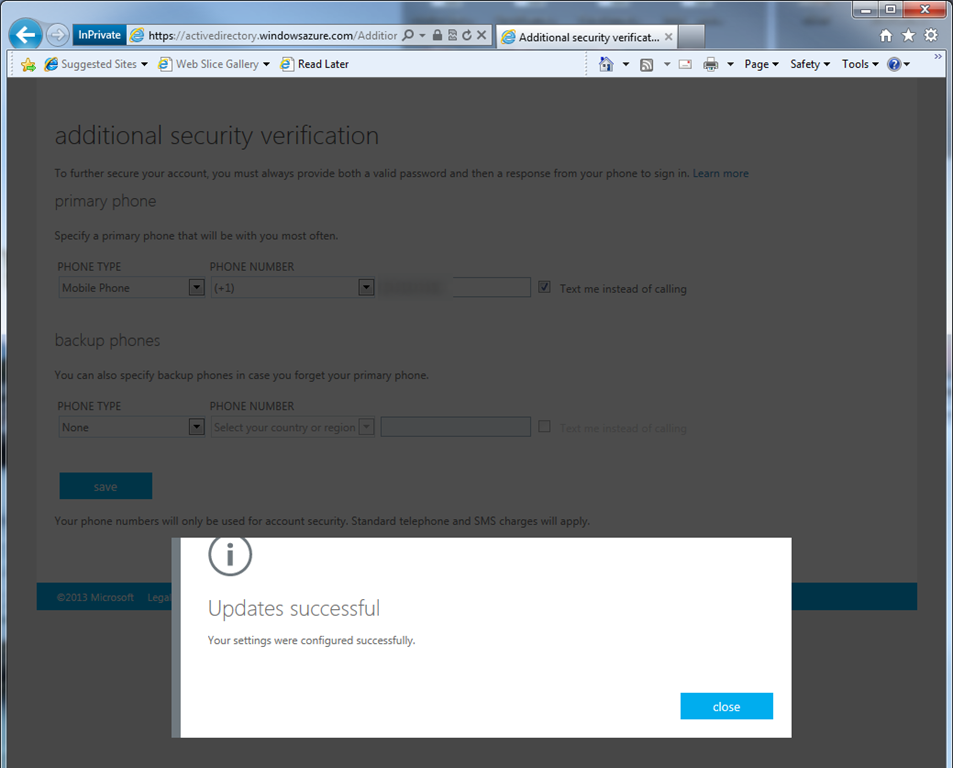
Your phone authentication factor is set up. Once you hit close, the system will make you use it right away.
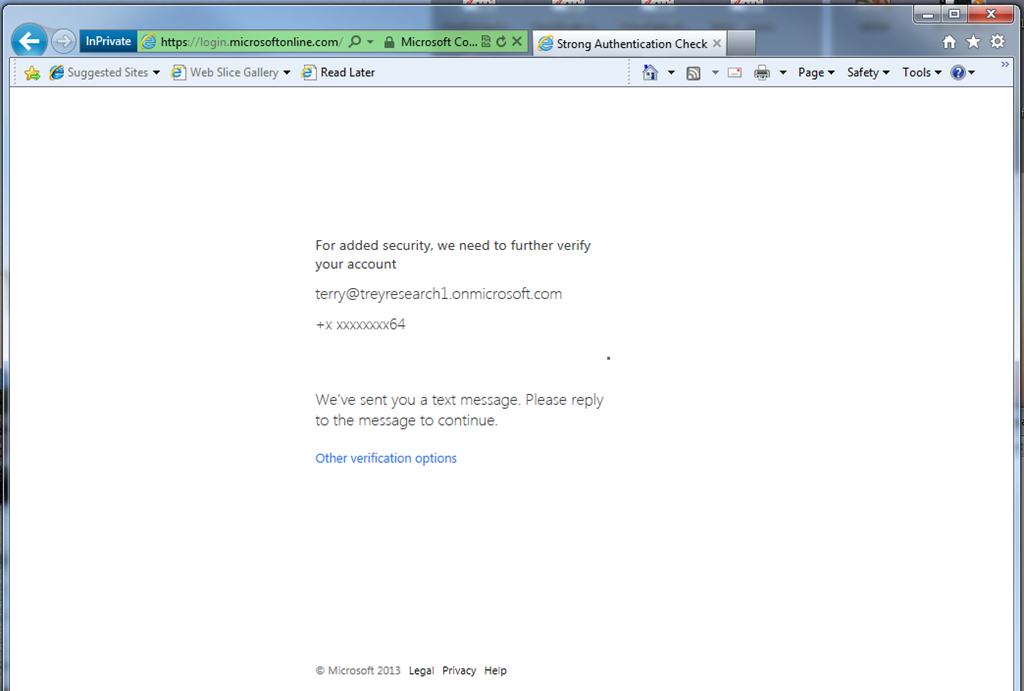
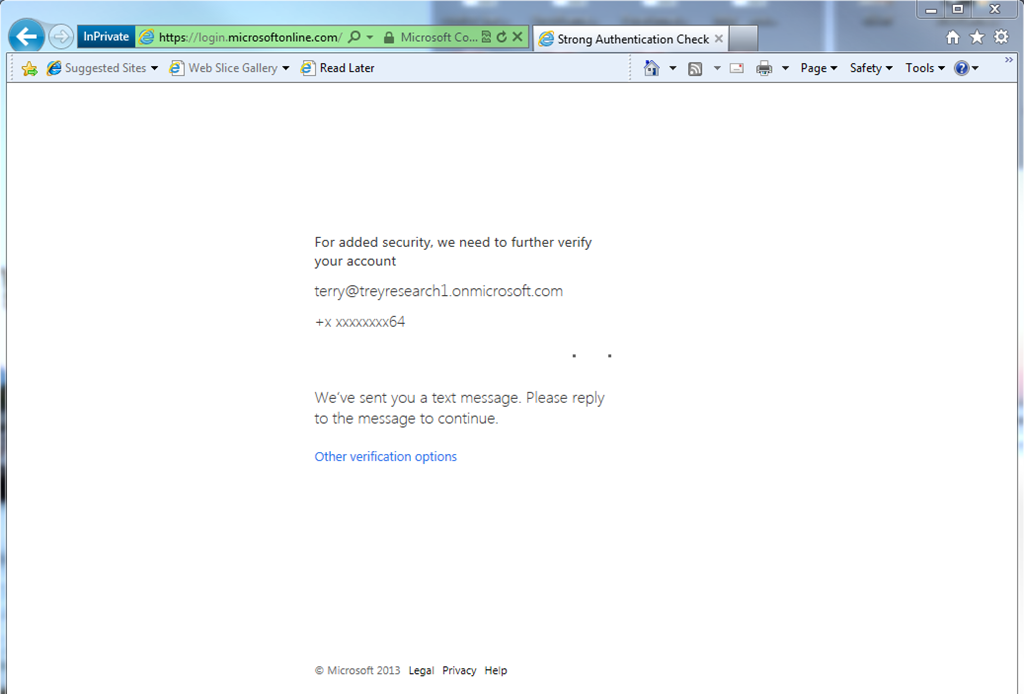
Here there’s the normal verification screen; expect the same phone flow as before.
OK, now you concluded your directory sign-in; however, you are still using your temporary password… hence you’ll have to change it.
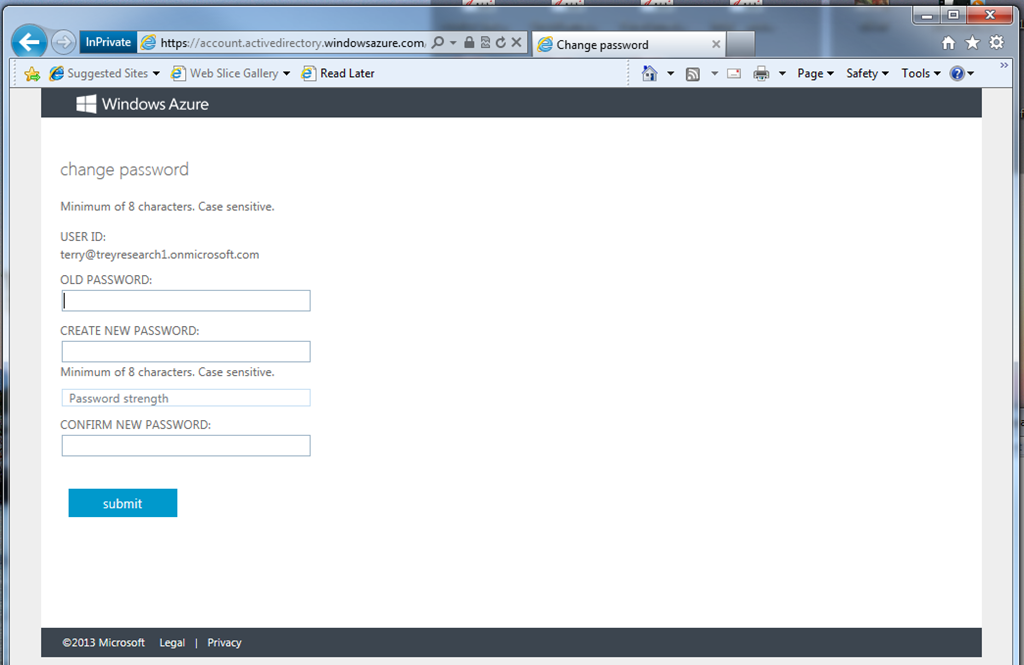
Once you change it, you are finally down with the setup! All that was a one-time thing, the steps from now on are the steps you will go through for signing in from now on.
Sign in with the new password.
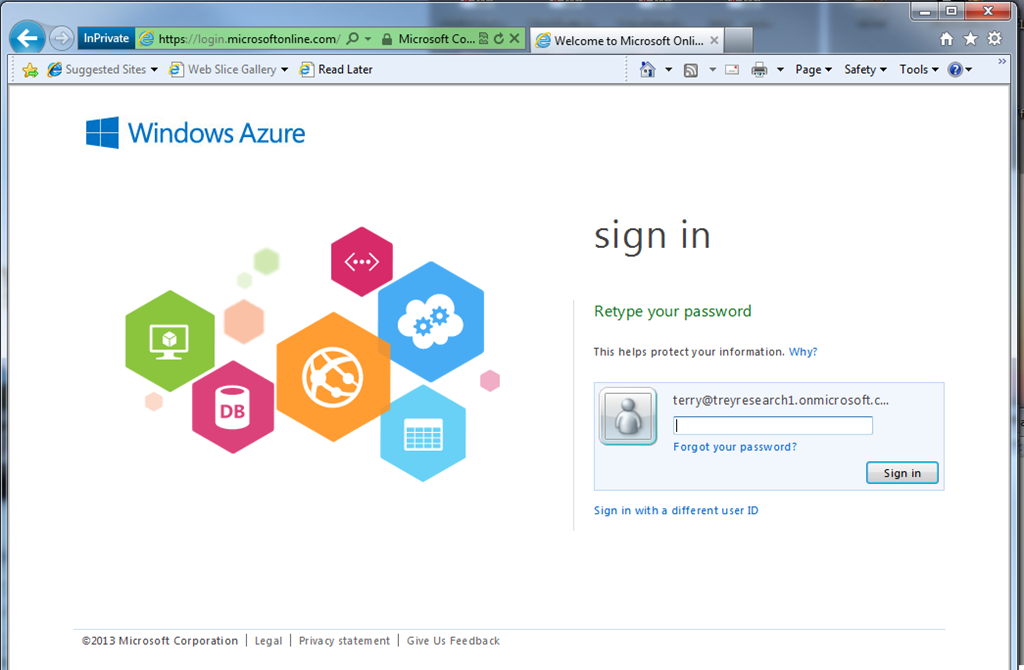
Do the phone authentication factor flow.
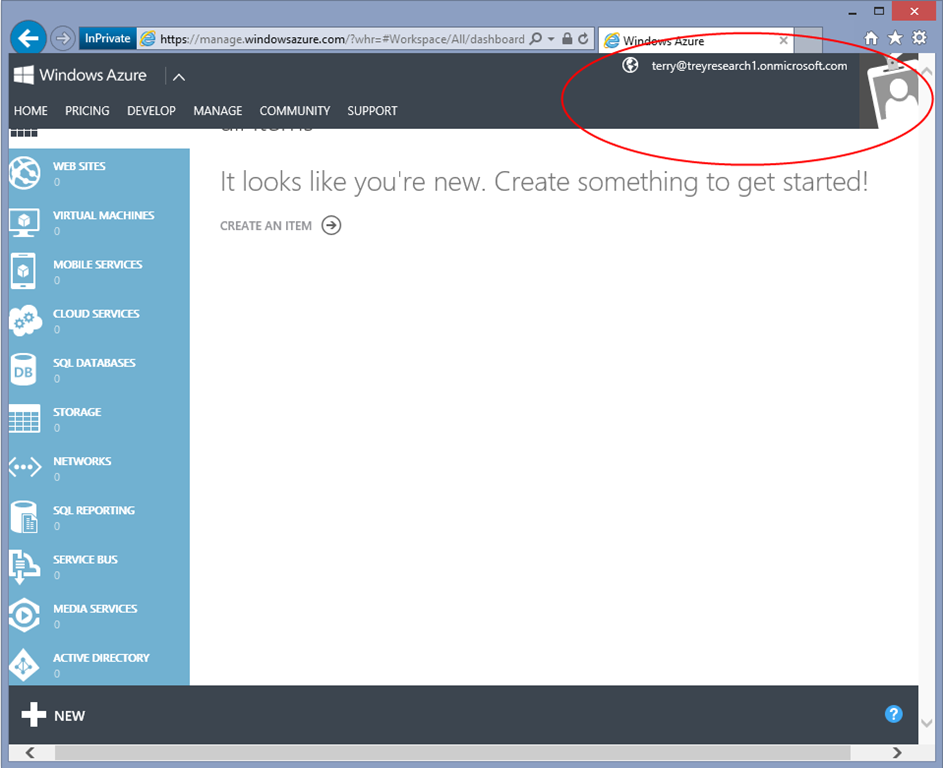
…and you are in!!! Pretty cool, If I may say so
Alrighty, this concludes our quick visual tour on the new Windows Azure Active Directory features in the Windows Azure AD portal. Once again, make sure you read Alex’s post about this. This is very exciting stuff!!!
3 Comments